 USD
USD EUR
EUR GBP
GBP CAD
CAD AUD
AUD HKD
HKD JPY
JPY KRW
KRW SGD
SGD NZD
NZD THB
THB TWD
TWD English
 日本語
日本語 한국어
한국어 Français
 Español
 Português
 Nederlands
 繁體中文
繁體中文
By DIGIBox TV Box | 06 May 2026 | 0 Comments
DIGIBox D6 Max Secret Settings: How to Set Up with Developer Options
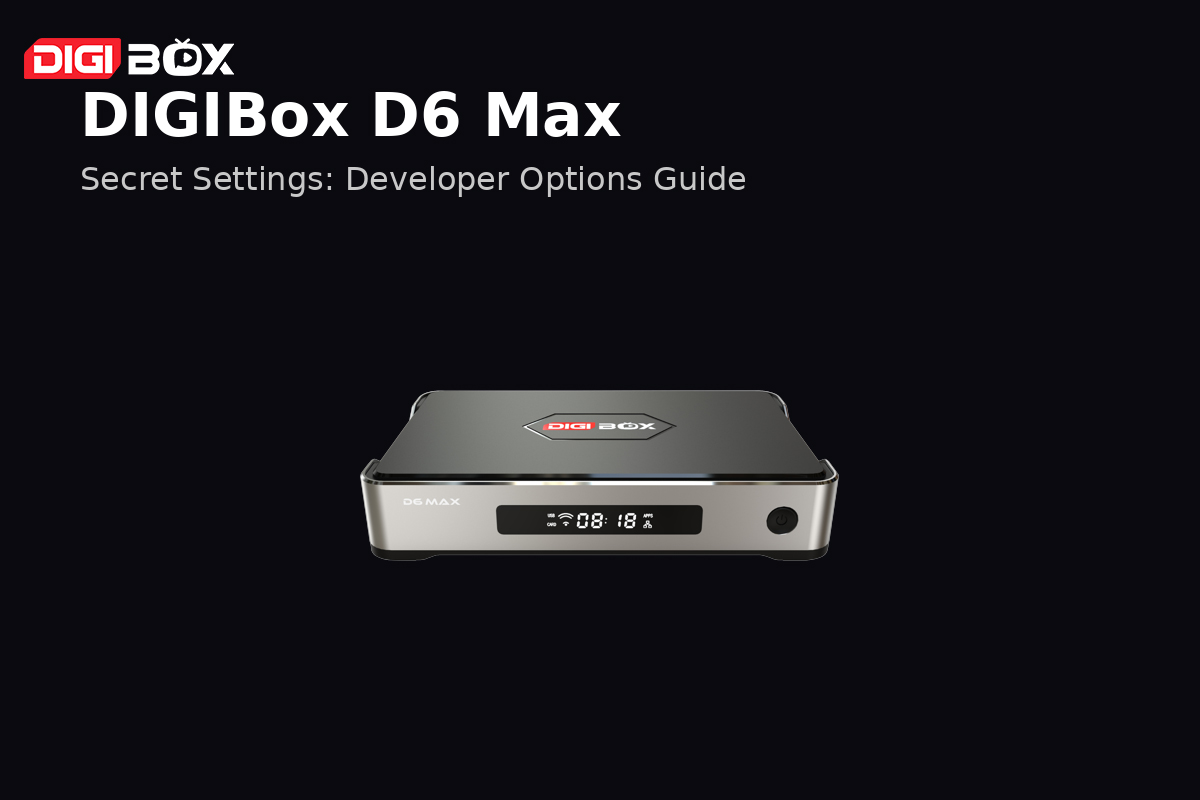
The DIGIBox D6 Max is already a powerful Android TV box out of the box—but what many users don't realize is that there's a hidden layer of advanced features waiting to be unlocked. If you want more control, better performance tuning, or access to deeper system tools, then Developer Options is where things get interesting.
In this guide, we'll walk you through how to access these "secret settings' and how to use them safely to enhance your experience.
What Are Developer Options?
Developer Options is a hidden menu built into Android systems, including the DIGIBox D6 Max. It's mainly designed for developers, but regular users can also benefit from it.
Once enabled, you can:
Customize system performance
Enable USB debugging
Adjust animation speeds
Monitor system activity
Access advanced troubleshooting tools
How to Enable Developer Options on DIGIBox D6 Max
Unlocking Developer Options is simple and only takes a few steps:
Go to Settings from the home screen
Scroll down to Device Preferences
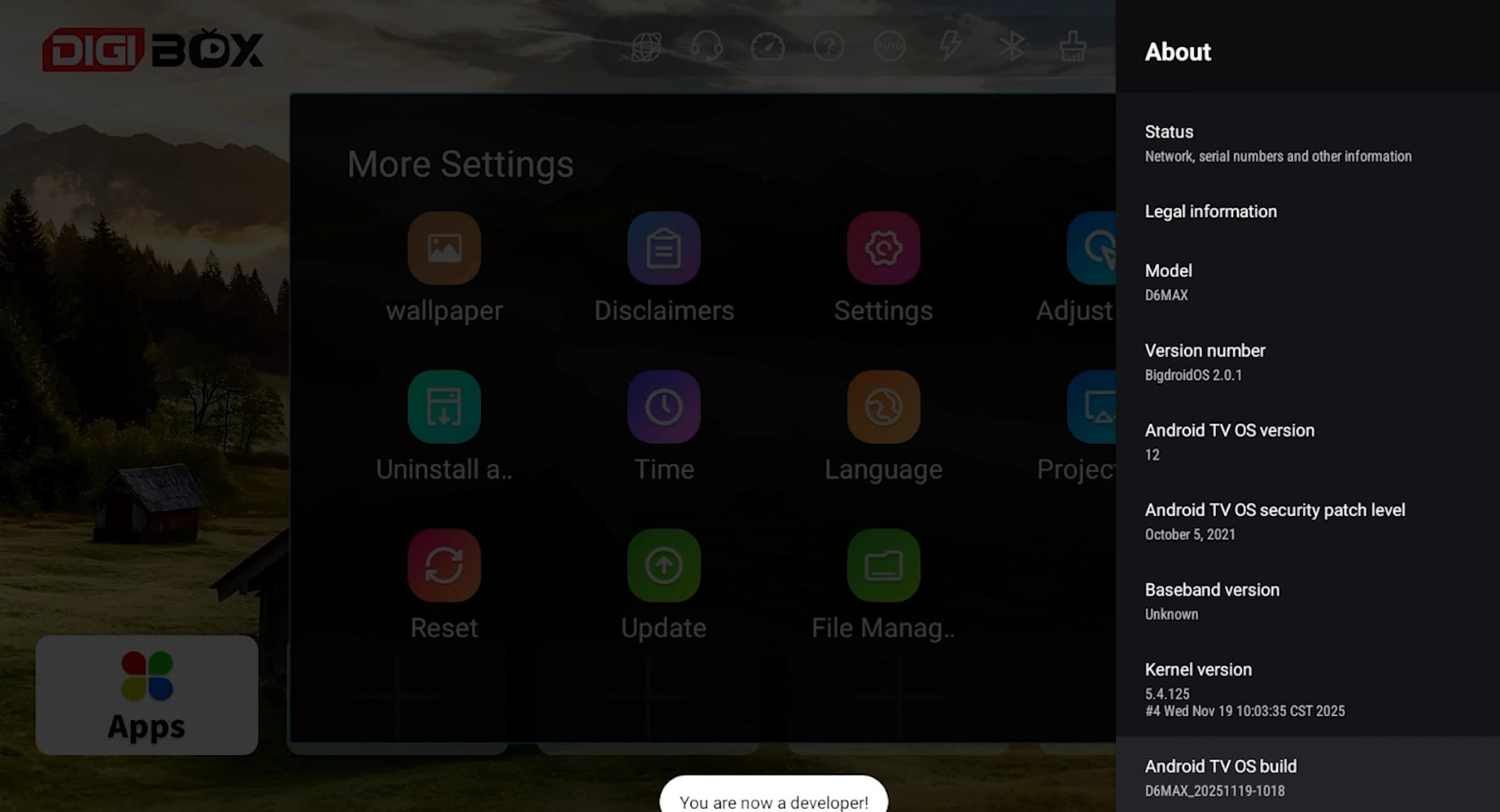
Select About
Find Android TV OS Build
Click it repeatedly (about 7 times)
After a few clicks, you'll see a message saying:
“You are now a developer!”
Once activated, go back to Device Preferences, and you’ll find Developer Options listed—usually between Energy Saver and Location.
Key Developer Settings You Should Know
Here are some useful options you can explore:
1. Animation Scale (Speed Boost)
Window animation scale
Transition animation scale
Animator duration scale
Set these to 0.5x or Off to make your device feel faster and more responsive.
2. USB Debugging
Allows your DIGIBox to communicate with a computer for advanced control or app installation.
Only enable this if you know what you're doing.
3. Running Services
View which apps are currently running in the background and how much memory they're using.
Great for troubleshooting slow performance.
4. Force GPU Rendering
Forces apps to use the GPU for rendering, which can improve performance in some cases.
5. Background Process Limit
Control how many apps run in the background.
Lowering this can free up memory and improve speed.
Important Tips Before You Change Anything
Developer Options gives you powerful control—but with that comes responsibility.
Don't change settings you don't understand
Take note of default values before modifying
Some options may affect system stability
Turn off Developer Options if not needed
Bonus: Other Useful DIGIBox Features
Beyond Developer Options, the DIGIBox D6 Max also offers:
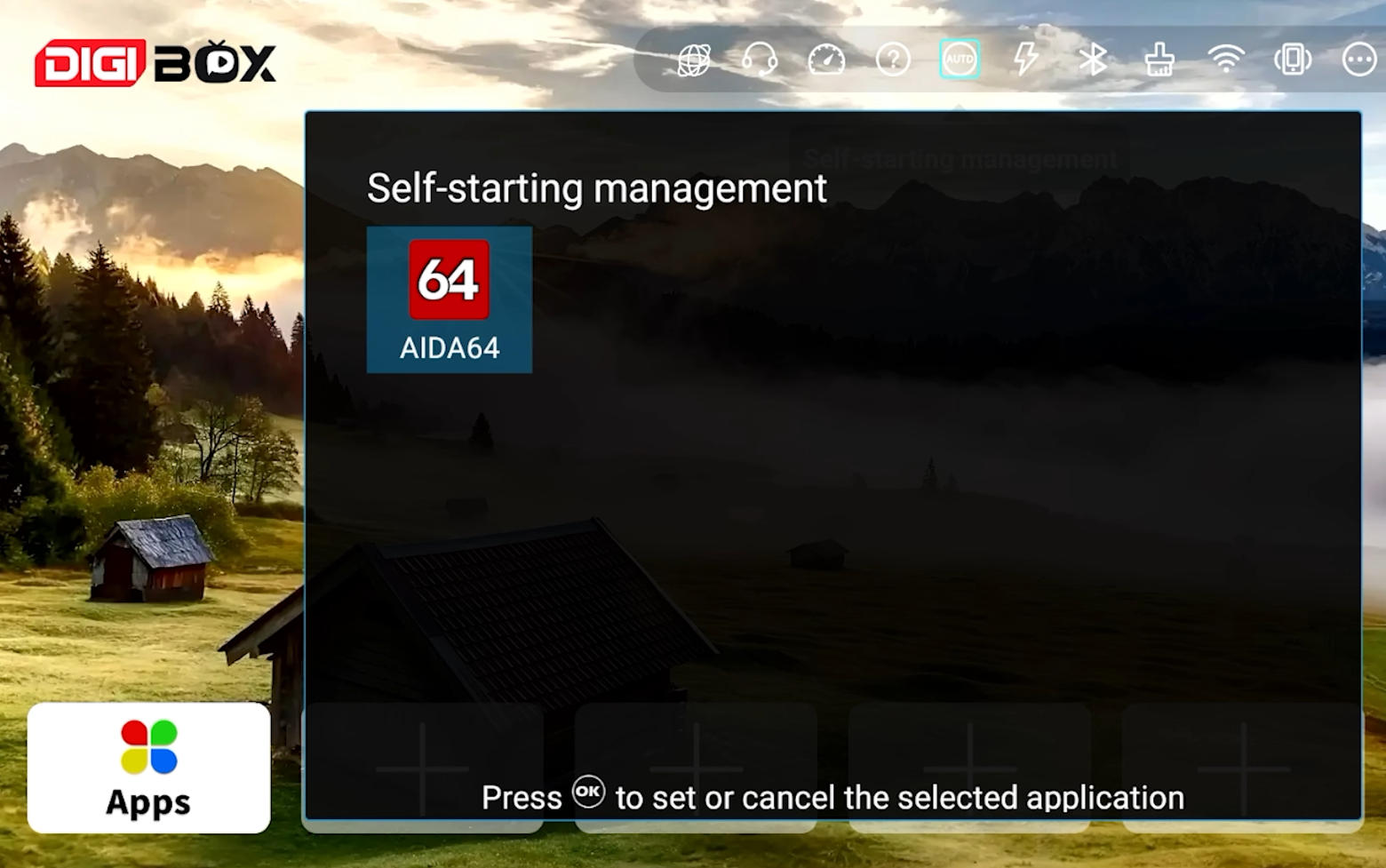
Easy-to-use home interface with customizable app shortcuts
Built-in internet speed test
File manager for APK installations
QR code support for remote control and customer service
System update tools and troubleshooting help
Everything is designed to give users a smooth and flexible streaming experience.
Final Thoughts
The DIGIBox D6 Max is more than just a plug-and-play TV box—it's a customizable entertainment system. By unlocking Developer Options, you gain access to powerful tools that can elevate your experience to the next level.
Whether you want faster navigation, better performance, or advanced controls, these "secret settings" are definitely worth exploring.
Ready to upgrade your home entertainment?
The DIGIBox D6 Max gives you the freedom to customize, optimize, and enjoy content your way.
If you're interested in getting one or want to learn more, feel free to reach out or check the links in the description.
In this guide, we'll walk you through how to access these "secret settings' and how to use them safely to enhance your experience.
What Are Developer Options?
Developer Options is a hidden menu built into Android systems, including the DIGIBox D6 Max. It's mainly designed for developers, but regular users can also benefit from it.
Once enabled, you can:
Customize system performance
Enable USB debugging
Adjust animation speeds
Monitor system activity
Access advanced troubleshooting tools
How to Enable Developer Options on DIGIBox D6 Max
Unlocking Developer Options is simple and only takes a few steps:
Go to Settings from the home screen
Scroll down to Device Preferences
Select About
Find Android TV OS Build
Click it repeatedly (about 7 times)
After a few clicks, you'll see a message saying:
“You are now a developer!”
Once activated, go back to Device Preferences, and you’ll find Developer Options listed—usually between Energy Saver and Location.
Key Developer Settings You Should Know
Here are some useful options you can explore:
1. Animation Scale (Speed Boost)
Window animation scale
Transition animation scale
Animator duration scale
Set these to 0.5x or Off to make your device feel faster and more responsive.
2. USB Debugging
Allows your DIGIBox to communicate with a computer for advanced control or app installation.
Only enable this if you know what you're doing.
3. Running Services
View which apps are currently running in the background and how much memory they're using.
Great for troubleshooting slow performance.
4. Force GPU Rendering
Forces apps to use the GPU for rendering, which can improve performance in some cases.
5. Background Process Limit
Control how many apps run in the background.
Lowering this can free up memory and improve speed.
Important Tips Before You Change Anything
Developer Options gives you powerful control—but with that comes responsibility.
Don't change settings you don't understand
Take note of default values before modifying
Some options may affect system stability
Turn off Developer Options if not needed
Bonus: Other Useful DIGIBox Features
Beyond Developer Options, the DIGIBox D6 Max also offers:
Easy-to-use home interface with customizable app shortcuts
Built-in internet speed test
File manager for APK installations
QR code support for remote control and customer service
System update tools and troubleshooting help
Everything is designed to give users a smooth and flexible streaming experience.
Final Thoughts
The DIGIBox D6 Max is more than just a plug-and-play TV box—it's a customizable entertainment system. By unlocking Developer Options, you gain access to powerful tools that can elevate your experience to the next level.
Whether you want faster navigation, better performance, or advanced controls, these "secret settings" are definitely worth exploring.
Ready to upgrade your home entertainment?
The DIGIBox D6 Max gives you the freedom to customize, optimize, and enjoy content your way.
If you're interested in getting one or want to learn more, feel free to reach out or check the links in the description.